Tesla Dashcam records video while you drive, while Sentry Mode watches the car when parked. Both can save recordings to a USB drive. You can also store your own music on the same drive if you set it up correctly.
For most supported Teslas, the easiest setup is to format a suitable USB drive on the vehicle touchscreen. Tesla formats it as exFAT and creates the TeslaCam folder. The main detail to check first is which USB port supports data on your vehicle.
Which Tesla vehicles support Dashcam and Sentry Mode?
Most Model 3, Model Y, refreshed Model S and Model X, and Cybertruck vehicles support USB video recording. Earlier Model S and Model X vehicles are more complicated. Dashcam availability depends on the vehicle’s camera and Autopilot hardware, installed software, and any eligible upgrades. Model year alone does not establish compatibility.
| Vehicle | Model years / generation | What to know |
|---|---|---|
| Model S | 2012-2020 (original interior) | Use the front center-console USB-A ports. Cars made before the eight-camera Autopilot 2 hardware arrived around October 2016 cannot use Tesla's built-in Dashcam. Vehicles equipped with Autopilot 2.0 may become eligible after certain Tesla computer and infotainment upgrades. Autopilot 2.5, introduced around August 2017, supported the original Dashcam feature. |
| Model X | 2015-2020 (original interior) | Use the front center-console USB-A ports. Models built before approximately October 2016 lack the camera hardware for Tesla's built-in Dashcam. Cars with Autopilot 2.0 may need qualifying upgrades. Check the actual hardware and software in the car rather than treating the model year as proof of compatibility. |
| Model 3 | 2017-2023 (original interior) | Early vehicles use front center-console data ports. Later vehicles often have a glovebox USB-A port. On some vehicles built after about November 1, 2021, console USB-C ports are charging-only. |
| Model Y | 2020-2024 (original design) | Similar to Model 3: front console data ports on earlier builds, glovebox USB-A when equipped; some vehicles built after about November 1, 2021 have charging-only center-console ports. |
| Newer Model S and X | 2021-2026 (refreshed interior) | Record Dashcam and Sentry Mode video through the glovebox USB-A port. The two front-console ports also support playback of music stored on USB devices. |
| Newer Model 3, Model Y and Cybertruck | Model 3 2024 onward; Model Y 2025 onward; Cybertruck 2024 onward | The glovebox USB-A port handles Dashcam and Sentry Mode recordings as well as USB music. Tesla identifies the center-console and rear USB-C ports in these vehicles as charging ports. |
Manufacturing dates and installed equipment can differ within the same model year. If you have an older Model S or Model X, check Controls > Software > Additional Vehicle Information for the Autopilot computer. Tesla offers recording-related upgrades for certain cars that already have the necessary camera system, but an infotainment upgrade cannot add the missing cameras to an earlier car. See Tesla’s computer-upgrade guidance and the manual for your vehicle. Our AP1 vs AP2 vs AP3 comparison explains the Autopilot hardware generations.
Where is the Tesla USB port for Dashcam?
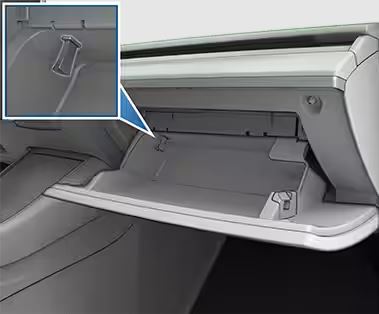
Many newer Teslas come with a preformatted USB drive already inserted in the glovebox. Check there before buying another drive. In older vehicles, the recording-capable ports are usually in the front center console. Rear-seat USB ports are generally charging-only.
Older Model S (2012-2020) and Model X (2015-2020)
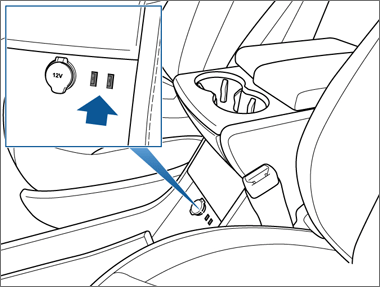
These generations have two USB-A ports at the front center console. They can transfer data for music and video recordings on compatible vehicles. Their rear USB ports are for charging only. These older interiors do not have the newer factory glovebox Dashcam USB port.
Model 3 (2017-2023) and Model Y (2020-2024)
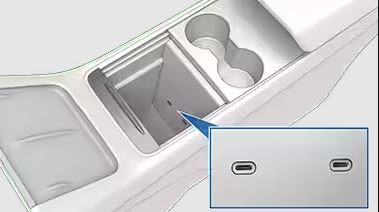
USB port locations and connector types changed during these model years. Early Model 3 and Model Y builds have data-capable front-console ports. Later builds can include a glovebox USB-A port specifically recommended for video recording. Tesla says some cars built after approximately November 1, 2021 have charging-only front-console USB ports. On those cars, plug the recording drive into the glovebox. The console illustration below shows a USB-C-equipped configuration; earlier vehicles may have USB-A ports.
Refreshed Model S and Model X (2021-2026), Model 3 (2024+), Model Y (2025+) and Cybertruck
For these interiors, the USB-A port in the glovebox is the place to connect a drive for Dashcam and Sentry Mode. Many vehicles already have a USB flash drive plugged in there. On refreshed Model S and Model X vehicles, the front center-console USB ports can also play music from a USB drive. On the newer Model 3, Model Y and Cybertruck, use the glovebox port for USB music as well as recordings.
What type of USB drive should you use?
Tesla requires a USB drive with at least 64 GB of storage, a sustained write speed of 4 MB/s or more, and USB 2.0 compatibility (including USB 3.x drives that are backward compatible). We recommend 128 GB or more for owners who regularly use Sentry Mode. Tesla’s minimum remains 64 GB. Look for reliability under repeated writes, not just a high advertised peak speed.
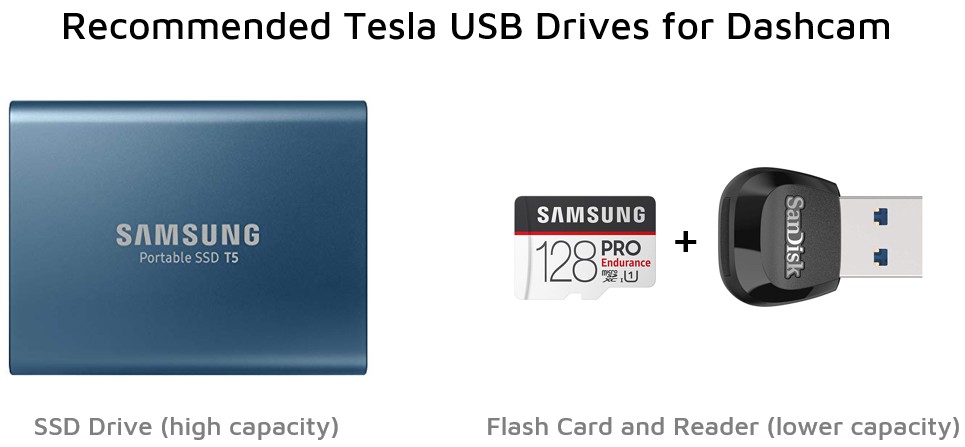
Option 1: Portable USB SSD
A portable SSD such as the Samsung T7 SSD (Amazon) can be a good choice for frequent recording. It is larger than a thumb drive, so make sure the drive and its cable fit securely in the console or glovebox without being bent or pinched.
Option 2: High-endurance microSD card and USB reader
A compact alternative is a Samsung PRO Endurance 128 GB card (Amazon) paired with a USB Reader (Amazon - select your type). Check the exact capacities, connector type and current product listings before ordering.
What about ordinary USB thumb drives?
A quality USB flash drive can work, and some Teslas come with one. The weak point is durability: inexpensive or heavily used drives may begin failing during repeated Dashcam writes. In our earlier testing, a high-speed flash drive that had been recommended for USB music (Amazon) played music without trouble but began showing “USB too slow” Dashcam errors after a couple of months. A high-endurance card or suitable SSD is worth considering if you use Sentry Mode frequently.
A USB hub (Amazon) can be convenient for other accessories, but it is not a good way to connect a recording drive. Tesla warns that hubs may interfere with device recognition by Dashcam, Sentry Mode and Media Player. For reliable recordings, plug the drive directly into the appropriate USB port.
How to format a Tesla USB drive in the car
- Back up any files you want to keep. Formatting erases the entire drive.
- Insert the drive into a data-capable USB port as described above.
- On the touchscreen, open Controls > Safety > Format USB Drive. Menu labels may vary with software version.
- Allow the car to format the drive. Tesla uses exFAT and creates the TeslaCam folder.
- Check that Dashcam is enabled under Controls > Safety > Dashcam and verify that it can record.
If the formatting option is unavailable: Check whether the port supports data and whether the drive has more than one partition. Some older vehicle configurations may require formatting on a computer instead. Tesla's format command is intended for a drive with one or fewer partitions.
How to format a Tesla USB drive on a Mac or Windows computer
If the vehicle cannot format the drive, you can use a Mac or Windows computer. Choose exFAT and add a folder named exactly TeslaCam at the top level of the drive. Tesla also lists MS-DOS FAT, ext3 and ext4 as compatible manual formats; NTFS is not supported. Most owners should use exFAT rather than installing special FAT32 formatting tools.
On a Mac
- Open Disk Utility and choose the correct external drive.
- Select Erase, set the format to exFAT, and confirm. Verify the selected drive carefully, as this erases its files.
- Open the newly formatted drive in Finder and add a folder named TeslaCam.
On Windows
- Open File Explorer, right-click the correct USB drive and select Format.
- Choose exFAT and start formatting. This erases the selected drive.
- Open the drive and create a folder named TeslaCam.
Windows and macOS can format exFAT drives directly, so you do not need a third-party formatting utility for a typical setup.
Using Tesla Dashcam
Dashcam records while driving when the feature is supported, enabled and using a recognized drive. Under Controls > Safety > Dashcam, choose an available setting such as Auto, Manual or On Honk. Availability varies by vehicle software. Automatic saving does not capture every incident, so save important footage as soon as it is safe to do so.
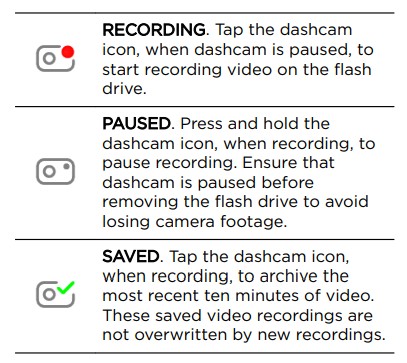
Saving a Dashcam clip generally preserves a recent 10-minute segment. Tesla’s 2012-2020 Model S and 2015-2020 Model X manuals document a rolling buffer of up to 60 minutes. On supported newer software, Tesla now allows recent footage to extend up to 24 hours on drives of 1 TB or more. The longer buffer is not guaranteed on every older vehicle. See Tesla’s current Dashcam storage instructions.
Viewing video recordings
When parked, open Dashcam Viewer from the touchscreen app launcher. To watch videos on a computer, first press and hold the Dashcam icon until recording pauses. Then remove the drive and open its TeslaCam folder. Typical folders include RecentClips, SavedClips and SentryClips. Tesla documents up to four recorded views on older Model S and X vehicles, while some newer vehicles can save six camera views. Rear-camera recordings are available only on vehicles manufactured after approximately February 2018. The Dashcam Viewer temporarily pauses recording while it is open.
Some vehicles also let you open and save recordings through Tesla app > Security > Dashcam Viewer. This requires Premium Connectivity, compatible vehicle software, an up-to-date Tesla app and the View Live Camera from Mobile App setting enabled in the car. Do not assume that this works on older Model S (2012-2020) or Model X (2015-2020): Tesla excludes those vehicles from Sentry Mode Live Camera, and mobile viewing of saved clips is not consistently supported across legacy configurations. For these older cars, plan to use the touchscreen viewer, if available, or a computer. See Tesla’s Dashcam instructions.
Some vehicles and software versions support encrypted Dashcam clips. These appear under EncryptedClips and cannot be opened like ordinary video files. Tesla documents a decryption process at dashcam.tesla.com for recordings made on supported vehicles. Do not assume that every older Tesla supports this option.
Using Tesla Sentry Mode
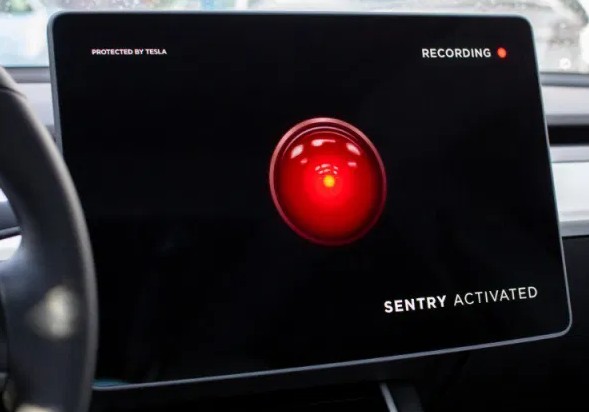
Sentry Mode watches for possible threats while the vehicle is locked and parked. To save incident videos, it needs a recognized USB drive, with Dashcam enabled on supported cars. Without a recording drive, Sentry Mode may still sound an alarm or send a notification, but no event video is saved. It does not detect every incident or guarantee protection from damage.
Use Controls > Safety > Sentry Mode to turn the feature on and choose exclusions for Home, Work or Favorites, where available. Sentry Mode uses battery power and switches off when the car enters Low Power Mode. On vehicles with that setting, you can activate Low Power Mode manually or set it to begin at a battery level from 10% to 20%. Other configurations generally disable Sentry Mode near 20% charge. Check the settings on your vehicle before leaving Sentry Mode running for long periods. See Tesla’s Sentry Mode support page.
Older-vehicle feature difference: Sentry Mode Live Camera is not available on 2012-2020 Model S or 2015-2020 Model X. This does not prevent owners with supported Dashcam hardware from watching saved clips on the touchscreen or a computer.
Playing music from the same USB drive
One exFAT drive can hold Dashcam videos, Sentry Mode recordings and your music library without special partitioning. After formatting the drive in the car, connect it to a computer and add a folder for music next to TeslaCam. We call the folder Music in the example below, but Tesla does not require that name.
USB DRIVE/
  TeslaCam/
  Music/
    Album 1/
      Track 01.mp3
Copy compatible audio files into your music folder, plug the drive back into the car's data-capable USB port, and choose USB in Media Player. Select your folder to start playback. The newer Model 3, Model Y and Cybertruck use the glovebox port for both music and video; storing both on one drive avoids swapping them. If your vehicle has another data-capable USB port, a separate music drive is also an option. See Tesla's media instructions.
Optional: smartphone adapters for older setups
For cars without supported mobile Dashcam viewing, you can copy footage to a computer or connect the removable storage to a phone. Choose an adapter that matches your phone and your drive. For example, a compatible USB-C cable (Amazon) may work with a USB-C phone and SSD, while an Apple Lightning SD-card reader (Amazon) or VIKASI Lightning card reader (Amazon) may suit certain older iPhones and memory cards. These adapters are alternatives, not items you need to purchase together. Check phone connectors, power requirements and product listings before ordering.
Optional advanced setup: partitions and older FAT32 instructions
For most supported Teslas, one exFAT drive with separate TeslaCam and Music folders is the simpler setup. If your particular vehicle or software cannot read both from one drive, separate partitions may be worth trying. The screenshots below illustrate an older computer-based approach and are not instructions to use NTFS, which Tesla does not support for Dashcam storage. Back up the entire drive before partitioning.
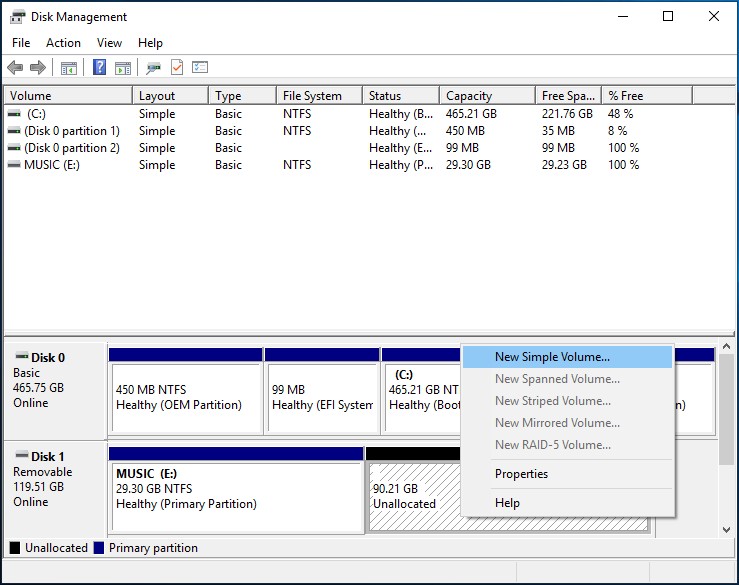
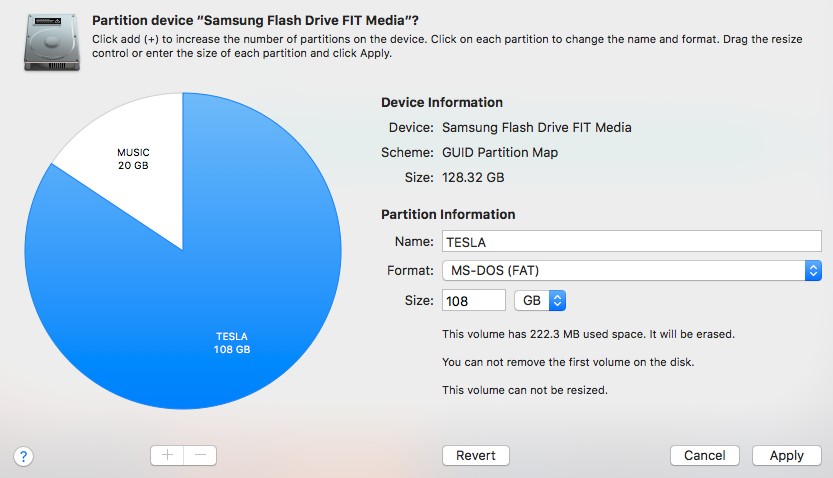
Older Tesla software once required FAT32 for Dashcam, but Tesla’s current manuals for the 2012-2020 Model S and 2015-2020 Model X document exFAT and separate folders. Start with exFAT. If you create multiple partitions on a computer, do not run the car’s Format USB Drive command afterward without first backing up your files. Tesla’s touchscreen formatting command is intended for drives with no more than one partition.
Common problems
| Problem | What to check |
|---|---|
| Drive is not recognized | Use the correct data-capable port; avoid hubs; try a different drive or cable; confirm exFAT and TeslaCam folder. |
| No Format USB Drive option | Confirm the vehicle supports recording, that the USB port transfers data and that the drive has at most one partition. Format as exFAT on a computer if needed. |
| “USB too slow” warning | Try a reliable, endurance-rated drive with at least 4 MB/s sustained write speed. |
| Sentry footage is missing | Make sure Dashcam and Sentry Mode are enabled and the USB drive is recognized. Old Sentry clips can be deleted as storage fills; save important events promptly. |
| Music does not appear | Check the correct data-capable USB port, a folder separate from TeslaCam, supported audio formats and the USB source in Media Player. |
| Video will not open on a computer | Check whether recordings are encrypted and whether you need Tesla's supported decryption method. |
For more detail, see Tesla's current manuals for 2012-2020 Model S, 2015-2020 Model X, 2017-2023 Model 3 and 2020-2024 Model Y, plus newer Model 3 USB ports. Tesla's documentation is updated as vehicle software changes.